Workspaces on mobile
Here's a quick tour of how Notion workspaces look and operate on your phone or tablet 📱
מעבר לשאלות הנפוצותAt the bottom of Notion for mobile, you'll see a navigation bar that is always present.
Tap
🏠on the bottom of any page to see familiar sections likeShared,Private,Favoritesthat match the desktop experience.Tap
🔍to search your workspace.Tap
📥to check yourInbox.Tap
📝to create a new page.
If you are part of a multi-member workspace, you'll see a section in the 🏠 tab of your mobile app called Teamspaces.
Teamspaces are a dedicated area for every team within your organization or company, and can be customized on an individual basis. Learn more about teamspaces →
Tap on the toggle next to any page in the 🏠 tab of your mobile app to reveal pages nested in other pages.
For database pages, you can toggle to see the different views of that database.
Tap on your current workspace's name at the top of your 🏠 tab to switch to another workspace you belong to, create a new one, join another one, or log out.
Editor tools
While in a page, a toolbar appears above your keyboard. It contains all the options you need to add content to your page.
Tap the
+to see a full menu of other content block types you can add to your page. This replaces the/command functionality on desktop.From this toolbar, you can also @-mention a person or page, add a comment, insert an image, delete content, indent, select text color and highlight, and delete and duplicate a content block. Scroll horizontally to see all these options.
••• menu
The ••• menu contains additional options, including but not limited to:
Choose from three different typography choices to format your page.
Customize page: Toggle the visibility of backlink and page comment sections.Lock page: Turn this on to prevent edits from being made.Lock views:Turn this on to prevent others from changing properties and views.
Page history: View past versions of the page going back seven days (extended for paid plans).Export: Download the page as a file. Databases get saved as CSV files, while non-database pages get saved in Markdown. You can also export either as PDF or HTML.Move to: This opens up a menu where you can choose any other workspace or page to move the current page into.
Share menu
Tap the share icon (square with upward arrow) to open this menu. From there, you can share the current page with others in a number of ways:
Share page link: Tap this button at the top to open your mobile device's share sheet. You can copy the page link or directly share the URL.Share to web: Turn this on to publish your page to the web so anyone with the link can see it. Tap the dropdown menu that saysShow link optionsfor more control over permissions, duplication, and search engine indexing.Add people, groups, or emails: Tap this to invite other Notion users to the page.Everyone: Turn this on to give every member in your workspace the ability to see the page. Tap the dropdown menu to the right and choose fromFull access,Can edit,Can comment,Can vieworNo accessto assign a level of access for people in your workspace.Groups: You may also see groups that have been created in your workspace that you can assign different access levels to.Guests: You can also add users outside of your workspace directly via email. They'll join as a guest.
Notifications
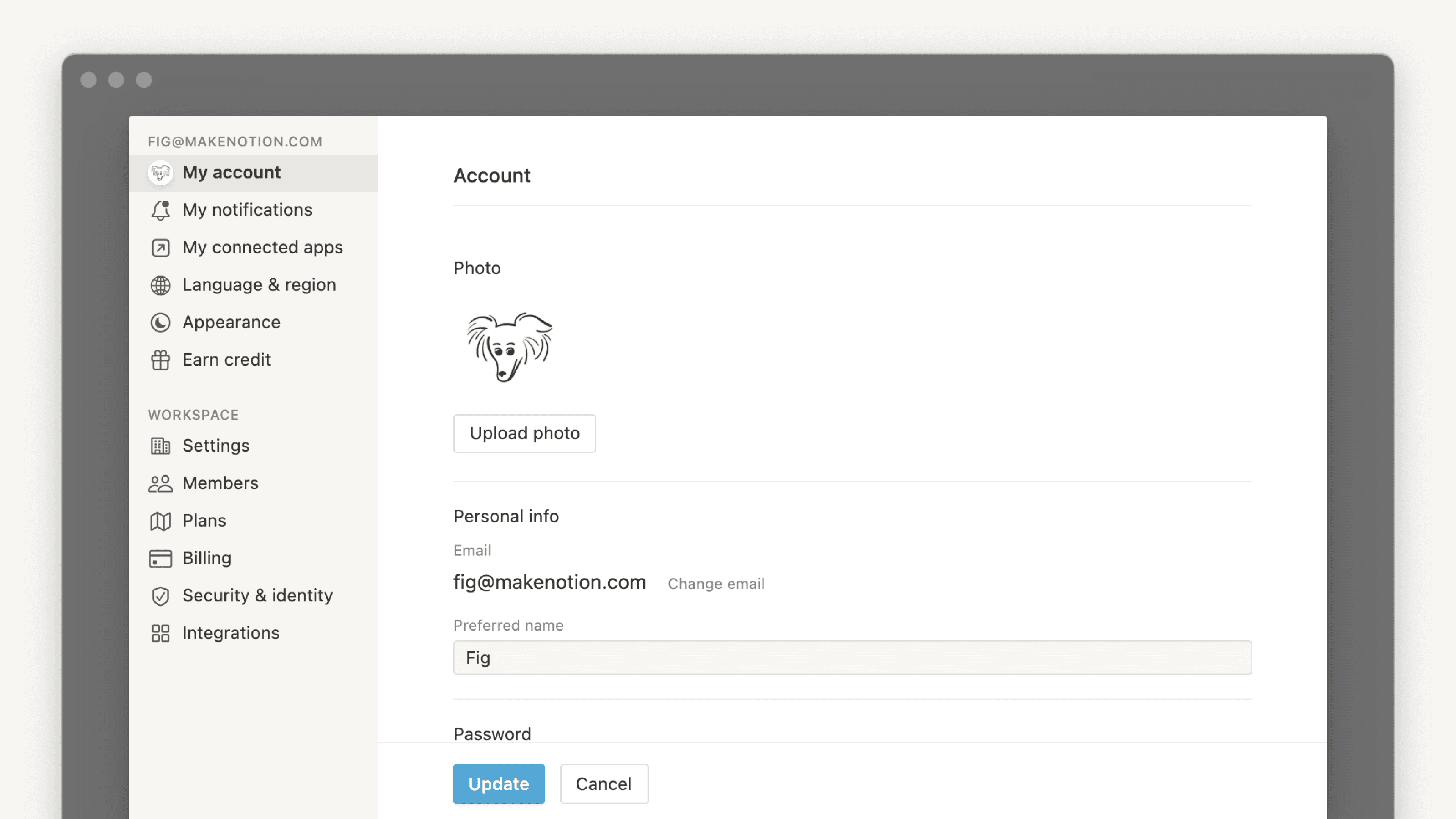
Many more Notion settings are available on desktop. We've slimmed these down for mobile to include only:
Notifications options for email and mobile push.
The option to set, change, and remove a permanent password.
The option to change your app appearance.
The option to start calendar weeks on Monday instead of Sunday.
Rage Shake
Rage Shake is a feature on Notion mobile (for Android) that allows users to report app issues by shaking their phone, triggering a notification to report a problem. To enable:
Click on
•••→Help & SupportandSend a message.Toggle on
Shake phone to report.
Trash
Tap to see deleted pages split into two categories: all deleted pages, and sub-pages deleted off the current page you're looking at.
Tap the trash icon to delete a page forever.
Tap the arced arrow icon to restore a page to your workspace.
שאלות נפוצות
Can I switch between workspaces that are associated with different email addresses?
Can I switch between workspaces that are associated with different email addresses?
To add your workspaces from another email account, use the Add another account button in the workspace switcher at the top left of your Notion window, and follow the steps to login to your other account. More on this here →
בסרגל הצד שלי אין אף מקטע. איך מפעילים אותם?
בסרגל הצד שלי אין אף מקטע. איך מפעילים אותם?
מקטעי סרגל הצד משקפים את הגדרות השיתוף של החשבון שלכם. אם יש יותר מאדם אחד בסביבת העבודה שלכם, יופיע מקטע מרחב צוות בסרגל הצד עבור העבודה השיתופית שלכם עם אותו אדם, והמקטע פרטי קיים עבור הדפים האישיים שלכם שגלויים רק לכם.
כשאני נרשם/ת לתוכנית Plus, האם היא מכסה את כל סביבות העבודה שלי?
כשאני נרשם/ת לתוכנית Plus, האם היא מכסה את כל סביבות העבודה שלי?
תוכניות בתשלום חלות רק על סביבת עבודה אחת, ואינן מכסות את כל החשבון. סביבות עבודה נפרדות לחלוטין, לכן לא תוכלו להוסיף קישור בין התכנים שלהן.
אנו ממליצים להשתמש במספר המינימלי האפשרי של סביבות עבודה, ולנצל דפים ברמה העליונה בסרגל הצד כדי להישאר מאורגנים.
איך ניתן להעביר את כל תוכן ה-Notion שלי לסביבת עבודה אחרת?
איך ניתן להעביר את כל תוכן ה-Notion שלי לסביבת עבודה אחרת?
הערה: כל תוכן שיועבר ישוכפל לסביבת העבודה החדשה, ולדפים אלו לעיתים יש בעיות. למידע נוסף, לחצו כאן.
כדי להעביר את התוכן שלך מסביבת עבודה אחת לאחרת המשויכת לאותו חשבון, לחץ על ••• ליד כל אחד מהדפים ברמה העליונה בסרגל הצד שלך (או לחץ לחיצה ימנית) ובחר Move to. בתחתית תפריט ההעברה, תראה תפריט נפתח לבחירת סביבת עבודה אחרת.
כשאתה מעביר דפים ברמה העליונה, כל דפי המשנה שלהם עוברים איתם. הם יופיעו בסעיף Private אך ניתן להעביר אותם לכל מקום שתרצה.
מה קורה אם מחקתי בטעות משהו לצמיתות? האם יש דרך לשחזר אותו?
מה קורה אם מחקתי בטעות משהו לצמיתות? האם יש דרך לשחזר אותו?
אם מחקת בטעות דף, סביבת עבודה או אפילו את כל החשבון שלך, אנחנו יכולים לעזור! תקלות קורות 😅 פשוט שלח לנו הודעה באפליקציה על ידי לחיצה על ? בתחתית סרגל הצד, או שלח לנו אימייל לכתובת [email protected].
אנחנו שומרים גיבויים של הנתונים שלנו, מה שמאפשר לנו לשחזר גרסה קודמת של התוכן שלכם מ-30 הימים האחרונים, אם תצטרכו.
איך מתנתקים מחשבון ה-Notion שלי?
איך מתנתקים מחשבון ה-Notion שלי?
לחצו על שם סביבת העבודה הנוכחית שלכם בפינה השמאלית העליונה של סרגל הצד. גללו לתחתית, ותראו את האפשרות יציאה לצד כתובת האימייל שלכם.