Track usage in the Notion credits dashboard
Learn how to use the Notion credits dashboard to track usage, plan future credit needs, and manage ongoing spend 📈
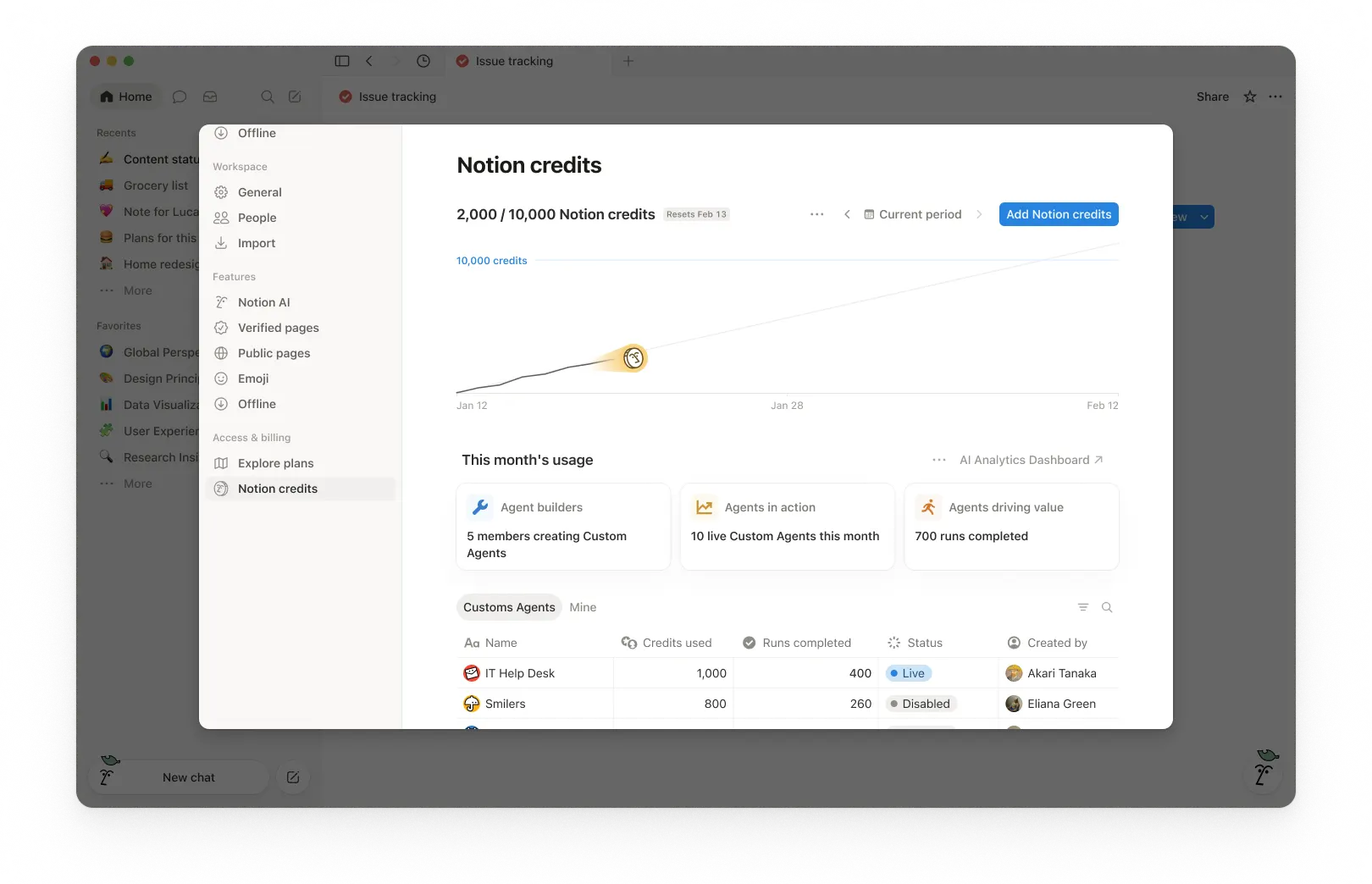
Zu den FAQsThe Notion credits dashboard gives a clear view of how Custom Agents, Autofill, and Workers use Notion credits across the workspace. Use it to track usage, plan future credit needs, and manage ongoing spend. To access it, go to Settings → Access & billing → Notion credits.
Admins on Business and Enterprise plans can monitor usage in the dashboard. Custom Agent creators and Worker creators can also see workspace-level credit pacing. The table will show only the Custom Agents or Workers they've created.
In the dashboard, you can monitor:
Credit usage in real time.
Estimated usage through your monthly service date.
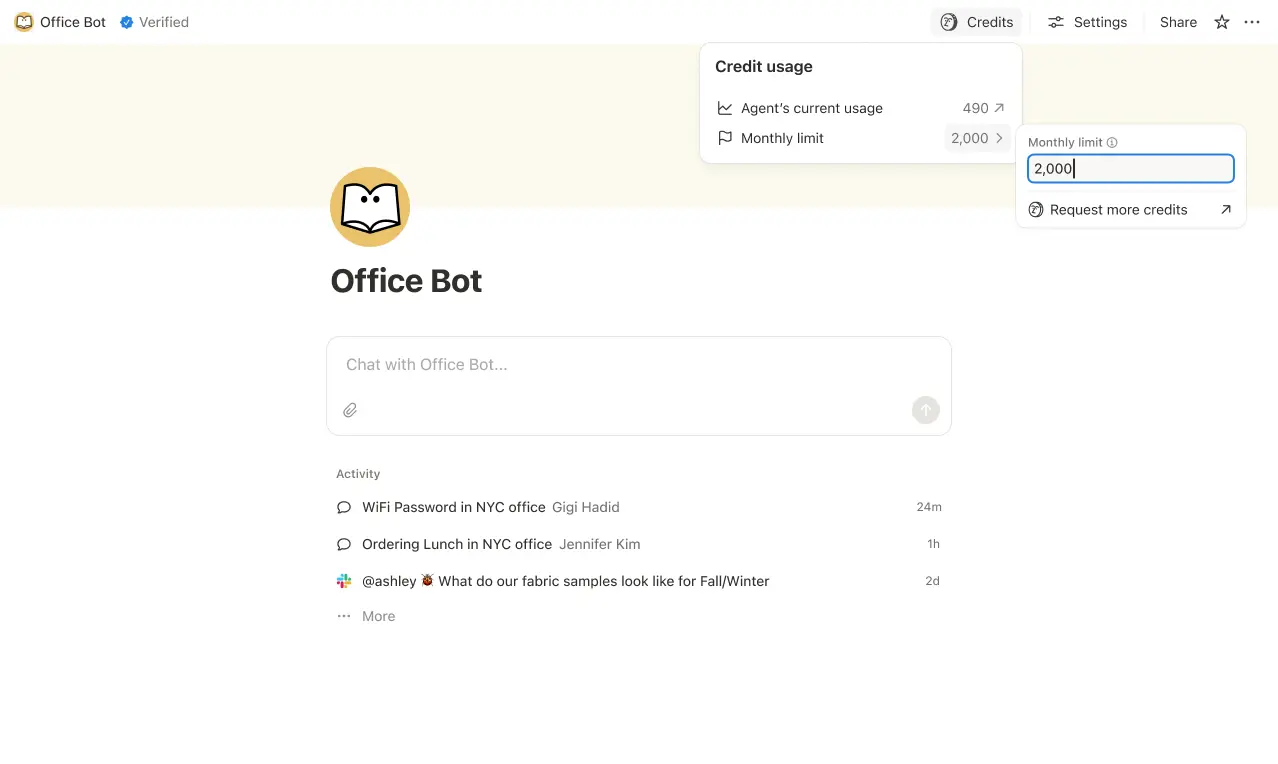
Agent-level runs and credit usage, so you can identify the agents driving spend and adjust them as needed.
If you manage multiple workspaces, you’ll also have a Notion credits dashboard in your admin console where you can track credit pacing and usage across your organization.
1. Usage summary
At the top of the dashboard, you’ll see the total Notion credits used for the selected period and your credits reset date. The selected period is based on your workspace’s billing cycle.
This gives you a quick snapshot of usage so far and when your monthly billing cycle ends.
2. Time period controls
In the top-right corner, use the period selector (for example, Current period) and navigation arrows to review past periods.
3. Usage chart
The usage chart shows credit usage over time:
Current shows your actual credits used so far.
Estimated projects where your usage is likely to land by the reset date if current patterns continue. The estimate is provided for informational purposes only and actual future usage may differ.
Use this to spot whether you’re pacing toward running out of credits before the reset.
4. Workspace usage cards
Under This month’s usage, you’ll see adoption and activity metrics such as:
Agent builders: How many members are creating Custom Agents.
Agents in action: How many live Custom Agents are running during the period.
Runs completed: How many tasks agents have completed across your workspace.
5. Usage breakdown
The usage table is organized into tabs so you can filter by type.
All: Every Custom Agent, Autofill, and Worker in your workspace.
Custom Agents: Custom Agent spend only.
Autofill: Autofill spend only.
Workers: Worker spend only. Workers show a Free badge during the beta period.
Mine: Only the Custom Agents and Workers you created
For each item, the table shows:
Notion credits used
Runs completed
Status
Created by
Include Worker spend in the main chart
By default, Worker spend is tracked separately from Custom Agent spend and isn't included in the main usage chart or total credit number. To fold Worker spend into the chart and total, select the three-dot menu ••• at the top of the dashboard and toggle on Include Worker spend.
What actions can an admin take to manage credit pacing?
Admins can monitor credit usage and control how Custom Agents run so spend stays predictable.
Admins have several ways to manage credit pacing:
Visibility: Track usage and trends in the Notion credits dashboard.
Guardrails: Decide who can create agents (and set limits).
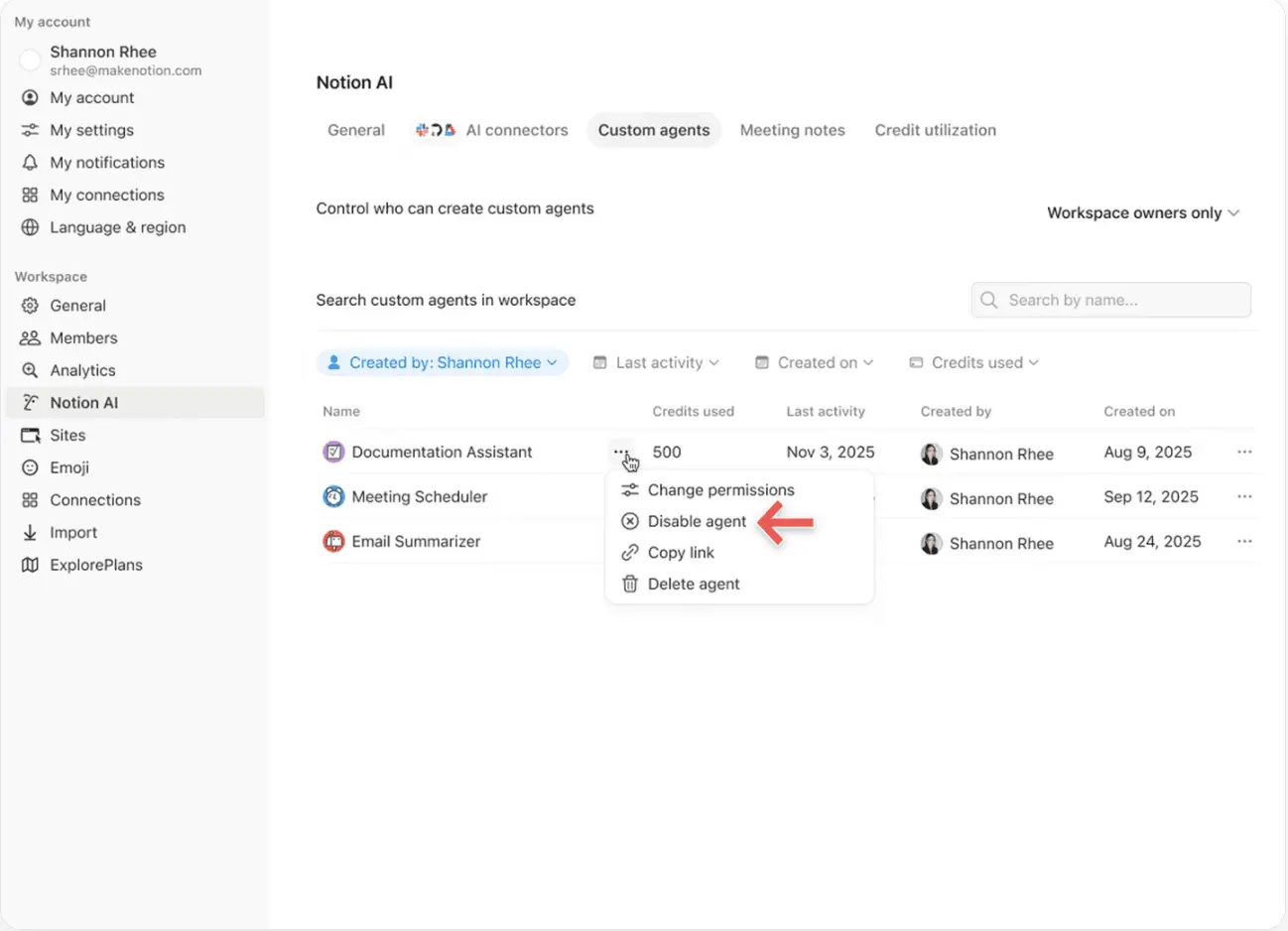
Control: Pause or switch off agents anytime to stop usage while you investigate or make changes.
Optimize: Fine-tune agents to reduce extra steps and improve efficiency.
1. Monitor usage to know what’s driving spend
Use the Notion credits dashboard to track usage over time and see which features are using the most credits. Notion also notifies admins when the workspace is approaching or has reached the credit limit, so admins have time to act.
2. Set guardrails to prevent surprises
Set credit limits for individual Custom Agents so they pause when they hit a threshold. In some cases, an agent may go over the limit in order to complete an ongoing task. If a task is already running when it hits the cap, we let it finish before stopping new usage.
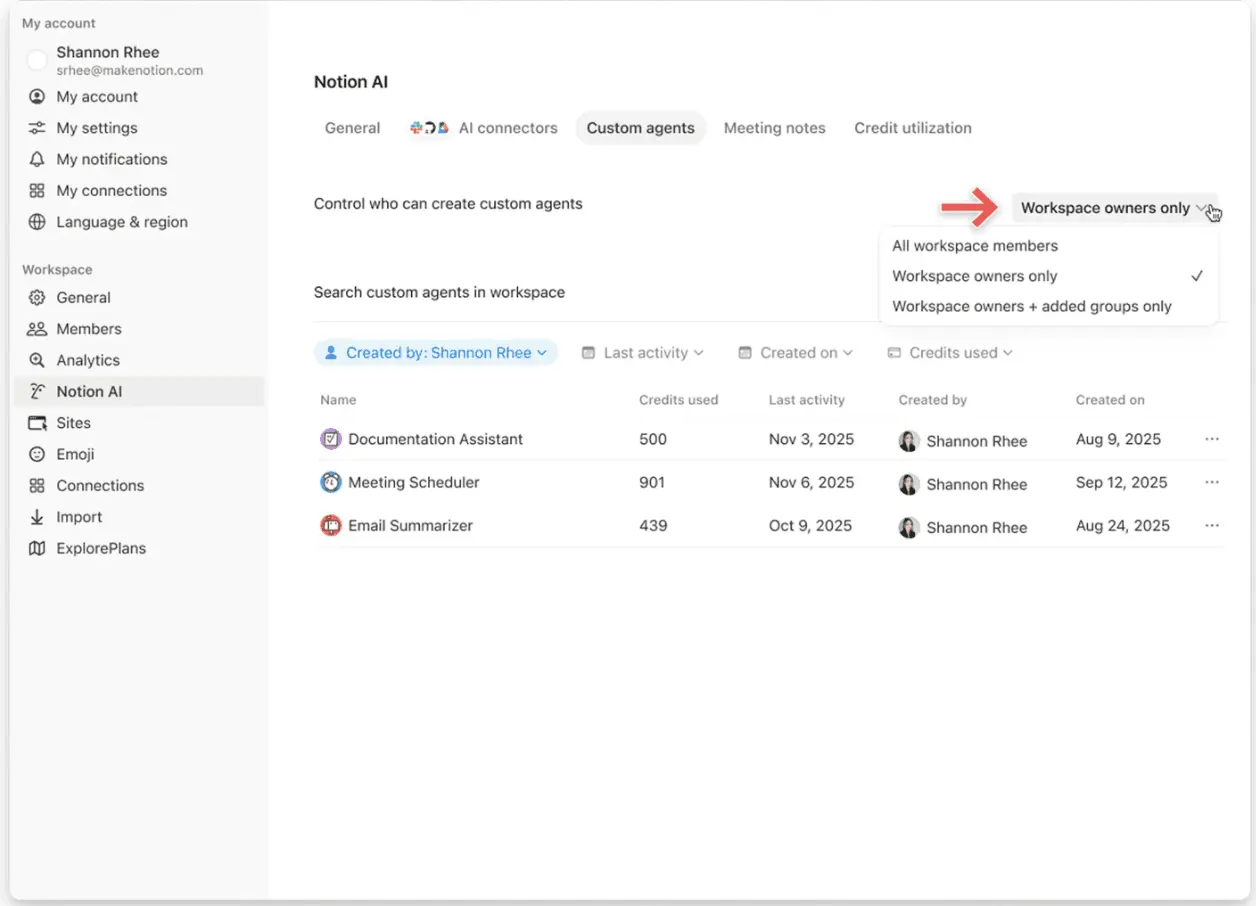
Control who can create Custom Agents (everyone, workspace owners only, or selected members).
3. Intervene quickly to stop usage
Pause or switch off a Custom Agent anytime to immediately stop credit usage while you review activity or adjust the agent.
4. Use Insights to optimize performance
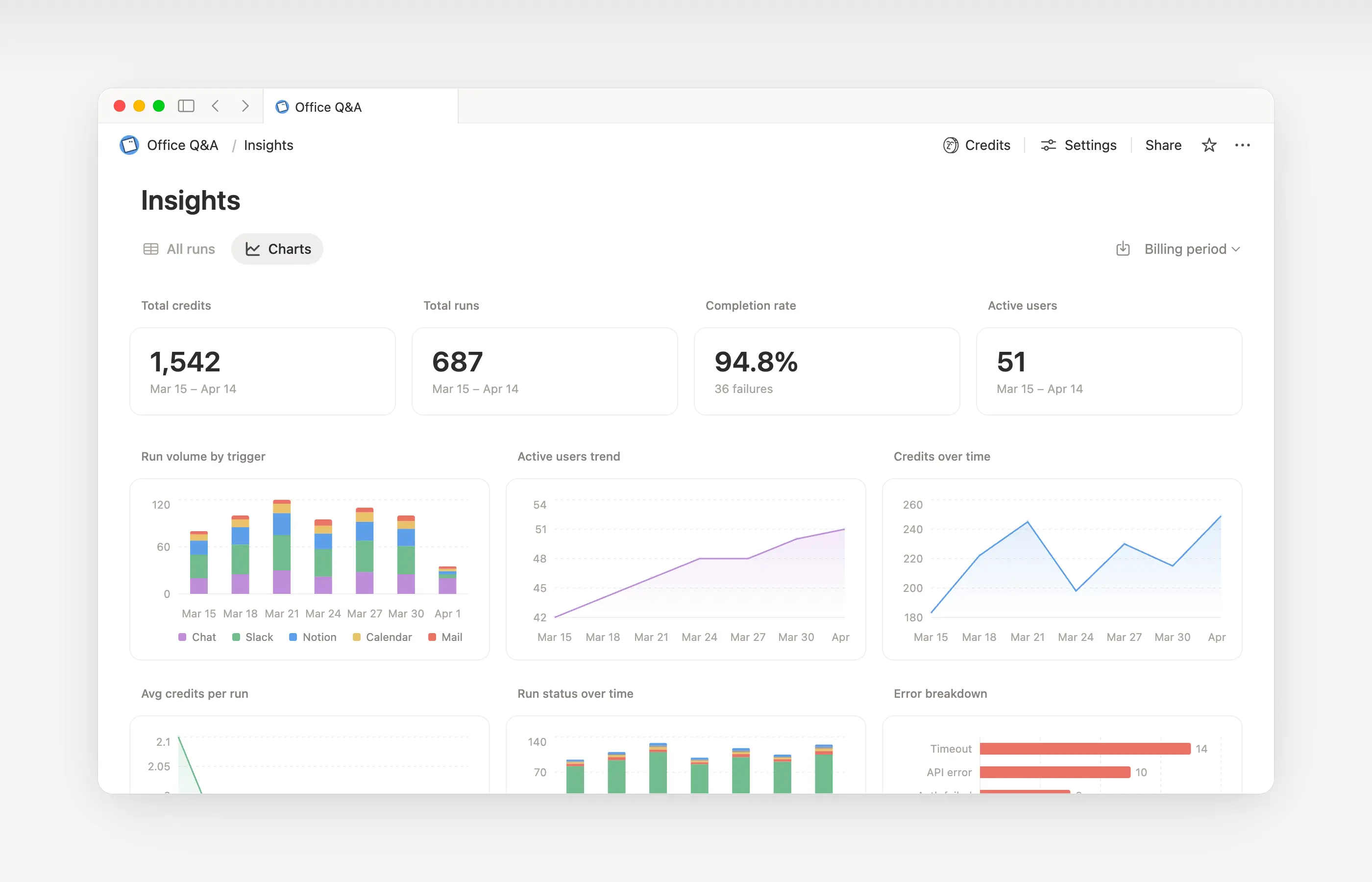
Insights helps Custom Agent creators and workspace admins understand activity so they can make targeted updates that improve performance. Use Insights to spot runs that take extra steps, fail and retry, or use a more expensive model than the job requires. Then, update the agent’s instructions or settings so it runs more efficiently.
Open Insights directly within an agent to:
Monitor your Custom Agent’s activity and credit usage.
Identify runs that are more expensive than expected.
Review what models, tools, and triggers were used.
Find and fix failed runs so your agent works more reliably.
Learn more about how to use Insights to reduce costs and improve a Custom Agent →

Learn what Custom Agents are and how they work.
Learn how Custom Agents access information, how sharing works, and what admins can control: Custom Agents sharing and permissions →
See more best practices on optimizing Notion credits and efficiency for Custom Agents in an admin’s guide to getting started with Custom Agents →
FAQs
Was passiert, wenn das Notion-Guthaben aufgebraucht ist?
Was passiert, wenn das Notion-Guthaben aufgebraucht ist?
Wenn in deinem Workspace nicht genügend Notion-Guthaben vorhanden ist, werden personalisierte Agenten automatisch angehalten, bis das Guthaben zurückgesetzt wird oder ein Admin mehr Guthaben hinzufügt.
Wie werden Admins benachrichtigt, bevor das Notion-Guthaben ausgeht?
Wie werden Admins benachrichtigt, bevor das Notion-Guthaben ausgeht?
Admins erhalten In-App-Benachrichtigungen (und E-Mails), wenn dein Workspace 80 % und 100 % seines Notion-Guthabens verbraucht hat. So hast du Zeit, Maßnahmen zu ergreifen, bevor die Agenten angehalten werden.
Wie kann ich weiteres Notion-Guthaben kaufen?
Wie kann ich weiteres Notion-Guthaben kaufen?
Admins können Notion-Guthaben entweder direkt im Produkt oder über ihr Support-Team erwerben. Erfahre mehr darüber, wie du Notion-Guthaben erwerben kannst.
Wie funktionieren Änderungen des Notion-Guthabens zur Monatsmitte?
Wie funktionieren Änderungen des Notion-Guthabens zur Monatsmitte?
Wenn du dein Notion-Guthaben mitten im monatlichen Abrechnungszeitraum erhöhst, steht das zusätzliche Notion-Guthaben sofort für den aktuellen Zeitraum zur Verfügung. Die Abrechnung für den höheren wiederkehrenden Notion-Guthabenbetrag erfolgt zum Beginn deines nächsten monatlichen Abrechnungsdatums.
Wenn du dein Notion-Guthaben mitten im monatlichen Abrechnungszeitraum verringerst, tritt der niedrigere Betrag zu Beginn des nächsten Abrechnungszeitraums in Kraft. Ab dann wird dir jeden Monat der niedrigere wiederkehrende Notion-Guthabenbetrag in Rechnung gestellt.
Ich arbeite mit einem Support-Team zusammen, um Notion-Guthaben zu erwerben. Was passiert, wenn ich während eines Abrechnungsintervalls meinen Business- oder Enterprise Plan upgraden, erweitern oder verlängern, der jährliches Notion-Guthaben beinhaltet?
Ich arbeite mit einem Support-Team zusammen, um Notion-Guthaben zu erwerben. Was passiert, wenn ich während eines Abrechnungsintervalls meinen Business- oder Enterprise Plan upgraden, erweitern oder verlängern, der jährliches Notion-Guthaben beinhaltet?
Du erhältst ein anteiliges Guthaben für das ungenutzte, im Voraus bezahlte jährliche Notion-Guthaben, das dem niedrigeren der folgenden Beträge entspricht:
dem Dollarbetrag des ungenutzten jährlichen Notion-Guthabens oder
den anteiligen Gebühren für das jährliche Notion-Guthaben für die verbleibende Abo-Laufzeit
Dieses Notion-Guthaben gilt, wenn ein neues Business- oder Enterprise-Formular dein aktuelles vor Ende der Vertragslaufzeit ersetzt. Notion-Guthaben haben keinen Barwert. Jegliches Notion-Guthaben wird auf den neuen Plan angerechnet.
Verbraucht Autofill Notion-Guthaben?
Verbraucht Autofill Notion-Guthaben?
Für Autofill gibt es zwei Optionen: Basic und Personalisierter Agent.
Basic-Autofill ist im Business und Enterprise Plan enthalten und verwendet kein Notion-Guthaben.
Autofill mit Personalisierten Agenten verwendet Notion-Guthaben, da es mit den Funktionen personalisierter Agenten ausgeführt wird (z. B. Verwendung eines umfassenderen Kontexts und fortgeschritteneres Reasoning).
Was passiert mit Custom Agents, wenn ich meinen Plan herabstufe?
Was passiert mit Custom Agents, wenn ich meinen Plan herabstufe?
Wenn du deinen Notion-Plan auf Free oder Plus downgraden, werden alle bestehenden Custom Agents deaktiviert, aber nicht gelöscht. Du kannst die Chat-Seite und die Einstellungen des Custom Agents anzeigen (aber nicht bearbeiten). Custom Agents können weiterverwendet werden, wenn du wieder auf Business oder Enterprise upgraden.
Kann ich Notion-Guthaben kaufen, wenn ich mein Abo über den App Store oder Google Play verwalte?
Kann ich Notion-Guthaben kaufen, wenn ich mein Abo über den App Store oder Google Play verwalte?
Nicht direkt. Wenn dein Notion-Abo über einen mobilen App Store (Apple App Store oder Google Play) verwaltet wird, kannst du Notion-Guthaben nicht innerhalb von Notion erwerben.
Um Notion-Guthaben zu erwerben, musst du Folgendes tun:
Dein Abo im mobilen App-Store kündigen.
Wechsle direkt auf notion.com zu einem Notion-Plan (Business oder Enterprise, inklusive KI).
Sobald dein neues Abo aktiv ist, kann ein Admin Notion-Guthaben unter
Einstellungen→Zugriff und Abrechnung→Notion-Guthabenerwerben.
Stelle sicher, dass dein neuer Plan KI beinhaltet, bevor du Notion-Guthaben erwirbst. Notion-Guthaben sind nur in Business- und Enterprise-Plänen verfügbar.