Link previews

See live, synced visualizations of links from popular platforms right in your workspace — no need to switch between apps or lose context 🔗
跳至常見問題Link previews allow you to see live, synced visualizations of links directly in Notion. This is currently supported for several platforms:
GitHub | Jira |
Slack | Asana |
Trello | Linear |
Zoom | Figma |
Adobe XD | Dropbox |
OneDrive & Sharepoint | Pitch |
Amplitude | Hex |
GRID | GitLab |
Box | Lucid (Lucidspark and Lucidchart) |
Whimsical | ClickUp |
Zendesk |

Note: Users will need edit access in SharePoint and OneDrive in order to use link previews.
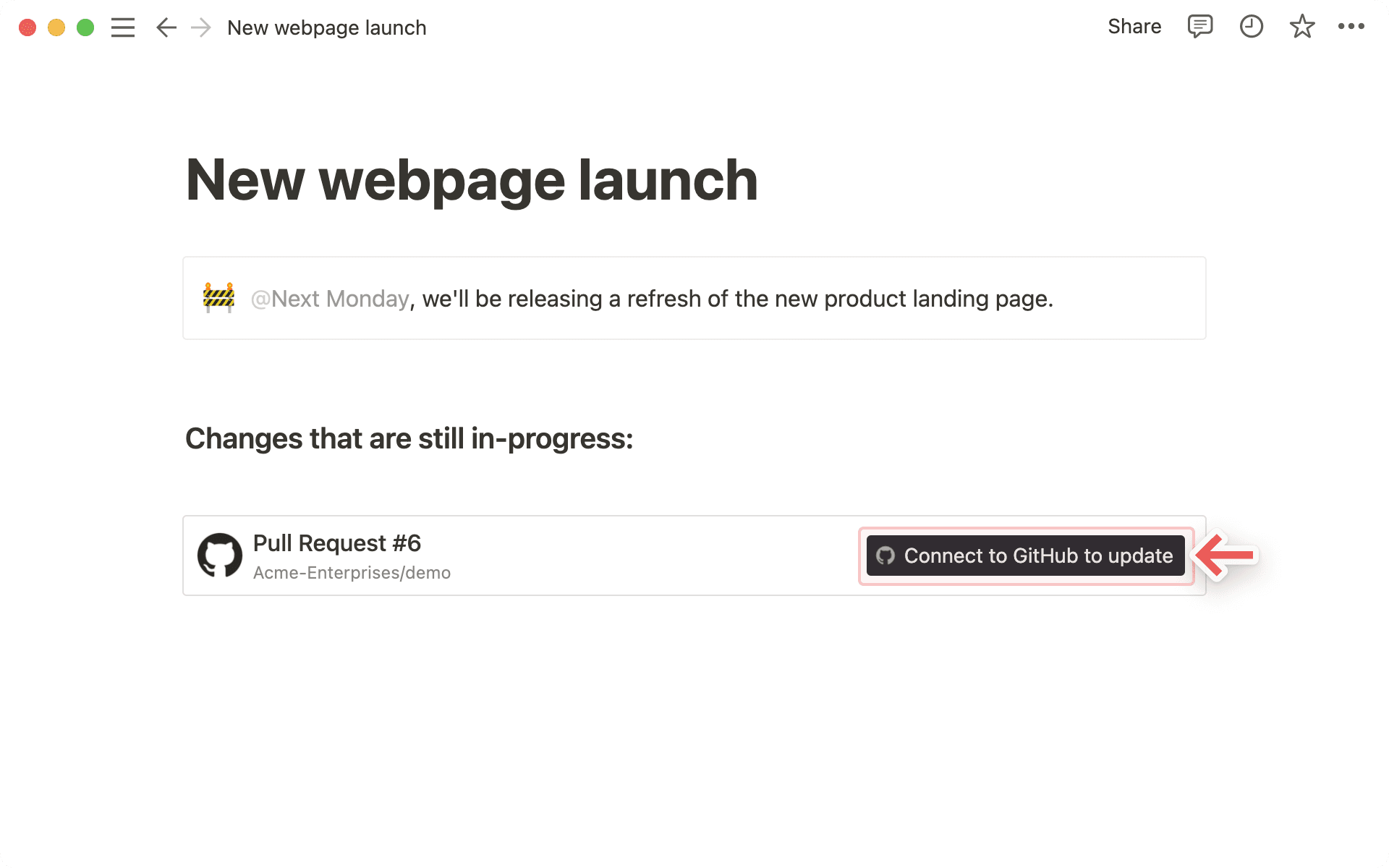
Copy a link from any of the supported platforms. Paste it into Notion and select
Paste as: Preview.The first time that you paste a link from one of these platforms, you'll see a button that asks you to connect to the app.

Once you click the button to connect, you'll be redirected to a browser window. Here, the app will ask for authentication and permission to display content in Notion.
When you've authenticated with the app, you'll see a detailed preview of the linked content. This preview updates as changes are made to any relevant fields.
Note: Once you've authenticated a connected app, anyone who can view your Notion page will be able to see corresponding content that you've pasted as a link preview.
In some cases, information will be abstracted (e.g., channel names from Slack private channels and DMs).
In addition to previews, you can also paste links from these platforms as mentions. These provide a more condensed visualization of the content in the link.
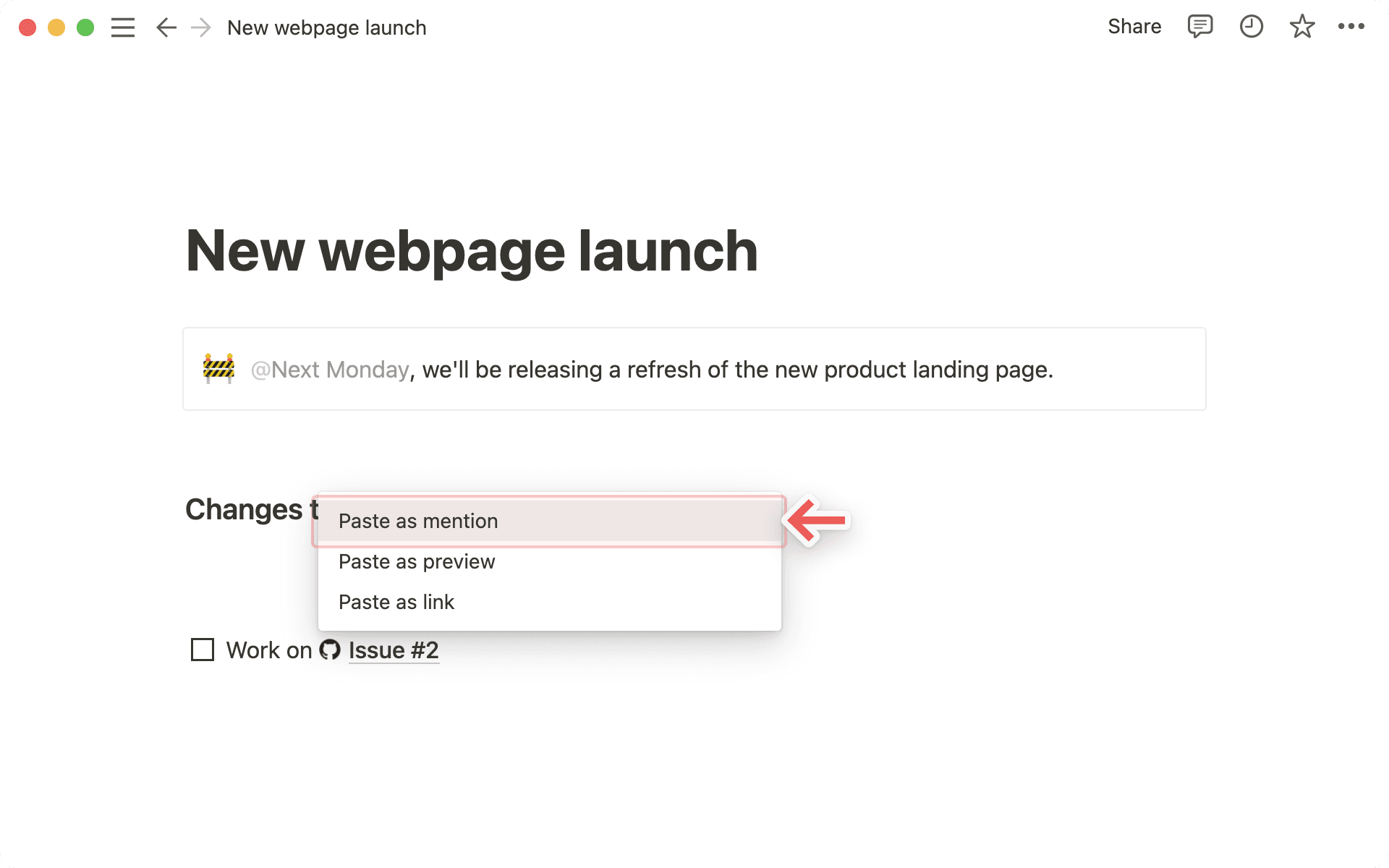
Copy a link from any of the supported platforms. Paste it into Notion and you'll see the option to
Paste as: Mention.Similarly to previews, you'll have to authenticate the app the very first time you paste a corresponding link in Notion. Click the button to open the authentication window and grant the necessary permissions. Afterward, you'll see the link mention pop up!

Tip: You can paste links as mentions directly inline, next to other text!
常見問題
我的連結預覽出現「存取被拒」或「找不到內容」錯誤。
我的連結預覽出現「存取被拒」或「找不到內容」錯誤。
我可以為連結預覽連接新增多個登入帳號嗎?
我可以為連結預覽連接新增多個登入帳號嗎?
可以!您可以透過 設定 → 我的連接 進行操作。針對所需的連接,選擇「連接另一個帳號」。
提示:部分應用程式在瀏覽器中不支援多帳號登入(例如 GitHub),因此您可能需要登出目前瀏覽器中已登入的帳號,系統才會提示您使用其他帳號登入。
我們將判斷要使用您的哪個帳號來預覽指定的資源,若皆無法成功,則會顯示錯誤。