Link previews

See live, synced visualizations of links from popular platforms right in your workspace — no need to switch between apps or lose context 🔗
מעבר לשאלות הנפוצותLink previews allow you to see live, synced visualizations of links directly in Notion. This is currently supported for several platforms:
GitHub | Jira |
Slack | Asana |
Trello | Linear |
Zoom | Figma |
Adobe XD | Dropbox |
OneDrive & Sharepoint | Pitch |
Amplitude | Hex |
GRID | GitLab |
Box | Lucid (Lucidspark and Lucidchart) |
Whimsical | ClickUp |
Zendesk |

Note: Users will need edit access in SharePoint and OneDrive in order to use link previews.
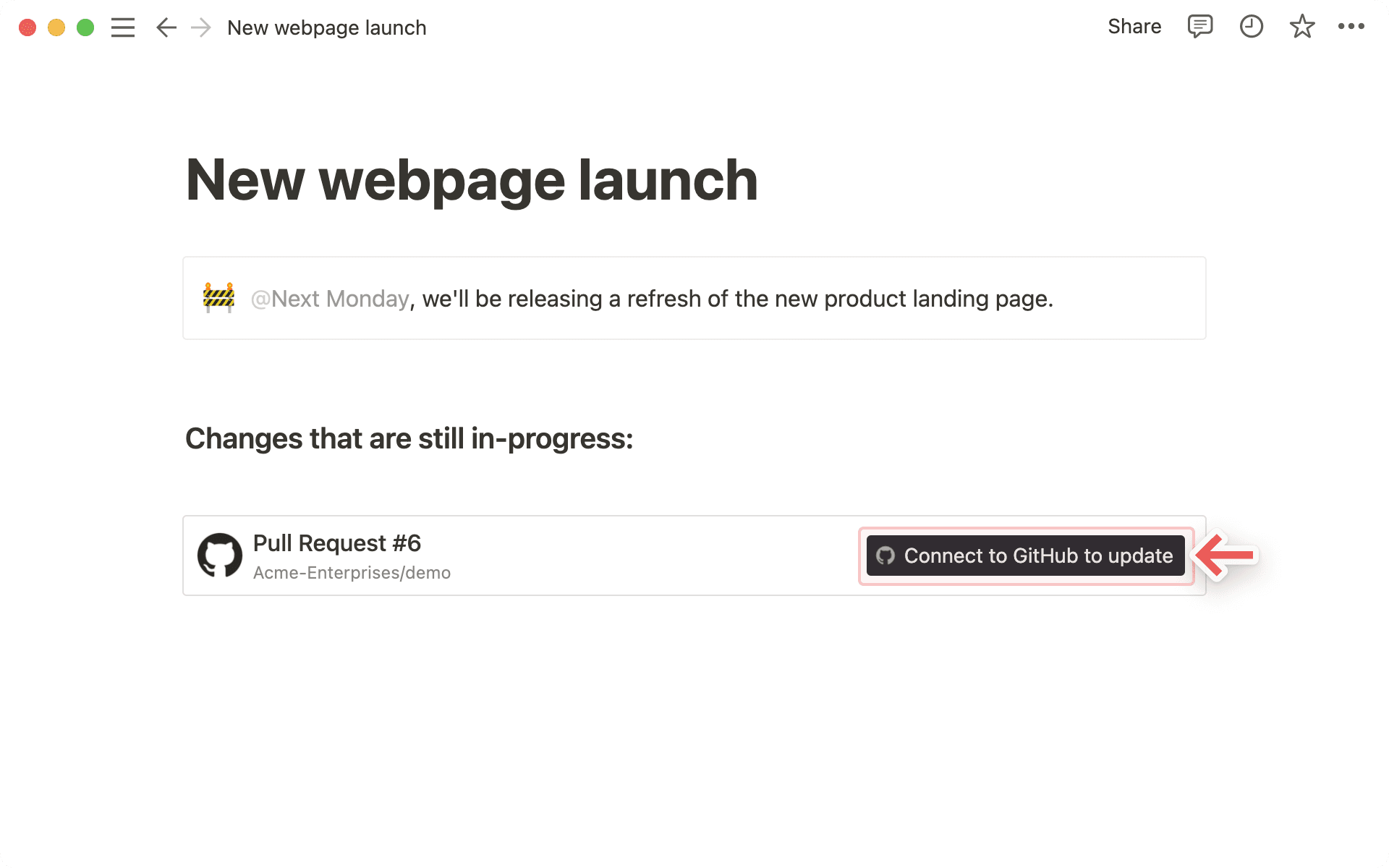
Copy a link from any of the supported platforms. Paste it into Notion and select
Paste as: Preview.The first time that you paste a link from one of these platforms, you'll see a button that asks you to connect to the app.

Once you click the button to connect, you'll be redirected to a browser window. Here, the app will ask for authentication and permission to display content in Notion.
When you've authenticated with the app, you'll see a detailed preview of the linked content. This preview updates as changes are made to any relevant fields.
Note: Once you've authenticated a connected app, anyone who can view your Notion page will be able to see corresponding content that you've pasted as a link preview.
In some cases, information will be abstracted (e.g., channel names from Slack private channels and DMs).
In addition to previews, you can also paste links from these platforms as mentions. These provide a more condensed visualization of the content in the link.
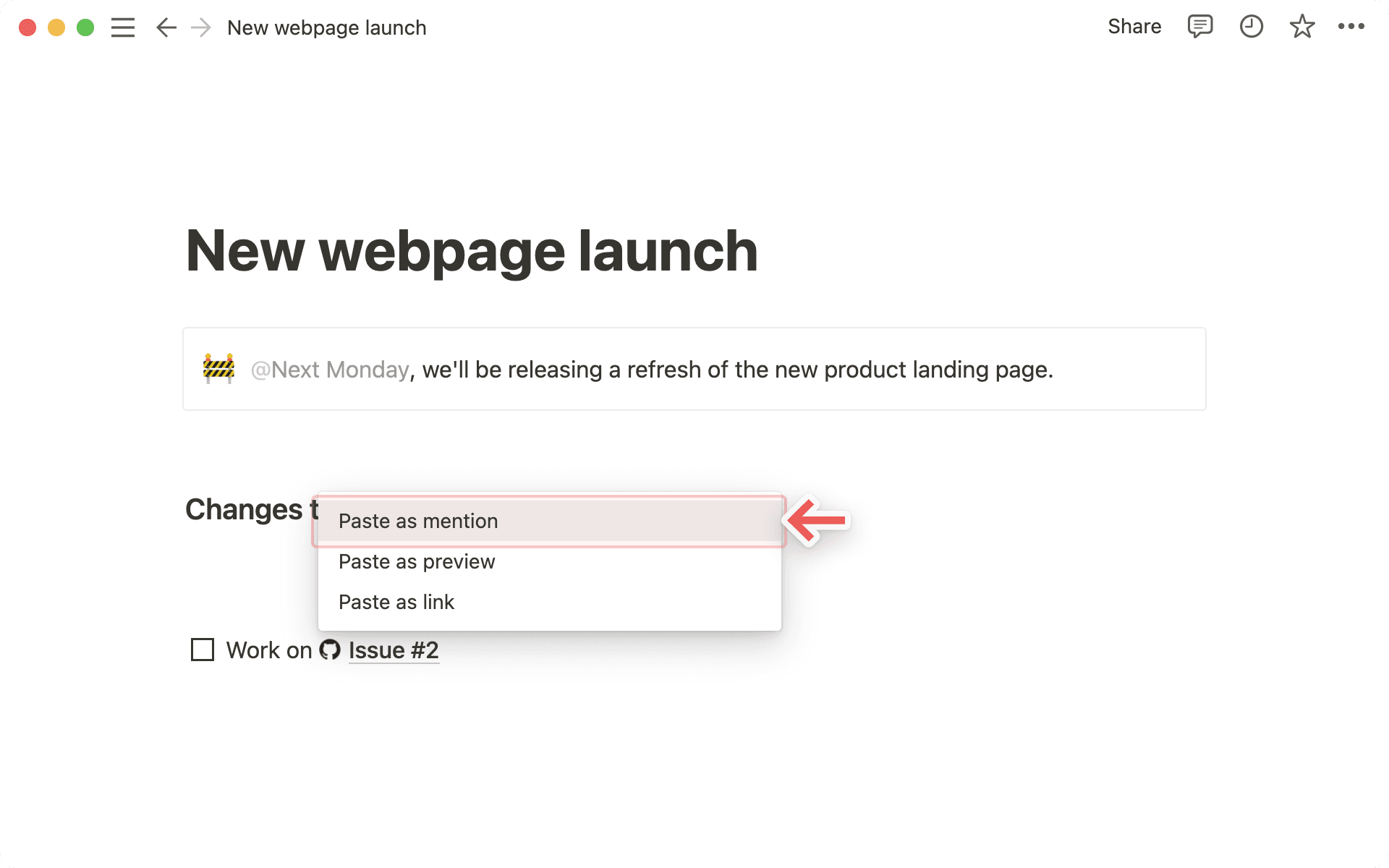
Copy a link from any of the supported platforms. Paste it into Notion and you'll see the option to
Paste as: Mention.Similarly to previews, you'll have to authenticate the app the very first time you paste a corresponding link in Notion. Click the button to open the authentication window and grant the necessary permissions. Afterward, you'll see the link mention pop up!

Tip: You can paste links as mentions directly inline, next to other text!
שאלות נפוצות
אני מקבל שגיאת "Access denied" (הגישה נדחתה) או "Content not found" (התוכן לא נמצא) בתצוגה המקדימה של הקישור שלי.
אני מקבל שגיאת "Access denied" (הגישה נדחתה) או "Content not found" (התוכן לא נמצא) בתצוגה המקדימה של הקישור שלי.
יש לכך שתי סיבות אפשריות:
ייתכן שלא ביצעת אימות עם החשבון שיש לו גישה. ניתן לחבר מספר חשבונות דרך
הגדרות←החיבורים שלי, או דרך התפריט הנפתח של השגיאה.
האם ניתן להוסיף יותר מכניסה אחת לחיבור של תצוגה מקדימה של קישור?
האם ניתן להוסיף יותר מכניסה אחת לחיבור של תצוגה מקדימה של קישור?
כן! ניתן לעשות זאת דרך הגדרות ← החיבורים שלי. עבור החיבור הרצוי, בחר ב-"Connect another account" (חיבור חשבון נוסף).
הערה: חלק מהיישומים אינם תומכים בכניסה מרובת חשבונות בדפדפן (למשל GitHub), לכן ייתכן שתצטרך להתנתק מהחשבון שמחובר כרגע בדפדפן כדי שתתבקש להתחבר עם חשבון אחר.
אנו נקבע באיזה מהחשבונות שלך להשתמש כדי להציג תצוגה מקדימה של משאבים נתונים ונציג שגיאה אם אף אחד מהם לא יצליח.
אני מקבל שגיאה כללית של "לא ניתן לטעון תצוגה מקדימה" בתצוגה המקדימה של הקישור שלי.
אני מקבל שגיאה כללית של "לא ניתן לטעון תצוגה מקדימה" בתצוגה המקדימה של הקישור שלי.
יש לעבור על השלבים האלה כדי לנסות לפתור את הבעיה.
יש לוודא שהתבצעה אימות באמצעות החשבון הנכון עבור המשאב.
יש לוודא שאין הגבלות גישה עבור הארגון שלך.
יש לנסות לפרוס שוב.
לבסוף, אם כל המאמצים אינם מצליחים, יש לפנות לתמיכה. לצערנו, איננו יכולים לסייע בפתרון שגיאות הקשורות ל-גישה נדחתה או תוכן לא נמצא. יש לספק את המידע הבא בעת הפנייה לתמיכה:
החיבור שאתה מנסה להשתמש בו
הודעת שגיאה וקוד
כתובת ה-URL שאתה מנסה להציג בתצוגה מקדימה (אם אפשר)